
Let’s be blunt. If you’re running a business and your email address is yourbusiness123@gmail.com, you’re undermining your own credibility. It’s like showing up to a client meeting in flip-flops. You might be a genius, but you don’t look like one.
Creating a professional GoDaddy email (like you@yourdomain.com) is the single most important step you can take after buying your domain. It builds instant trust, looks professional, and reinforces your brand with every single message you send.
But if you’re here, you’ve probably hit a wall. You’re logged into your GoDaddy account, staring at a dashboard full of “DNS,” “MX,” and “Provisioning” and you just want to send an email. I’ve been there, and I’ve walked dozens of clients through this exact (and often frustrating) process.
This is the only guide you’ll need. We’ll walk you through every step, from choosing the right plan to setting up your first inbox and even troubleshooting why it might not be working.
What’s the Big Deal? Why a Professional Email Matters
A professional email address builds trust, branding, and credibility. It shows potential customers that you are a legitimate, established business, not just a side hustle or a hobby. It’s a fundamental part of your professional identity.
Think about it from a customer’s perspective.
- Trust: Who would you rather send your credit card info to?
info@yourbusiness.comorthatguy2023@hotmail.com? Scams and phishing attempts love free email addresses. A custom domain email shows you’ve invested in your business. - Branding: Your domain is your brand. Every time you send an email, you are putting your brand name directly in front of a customer. It’s free, passive marketing.
- Control: When an employee leaves, you don’t want them taking their
sales.mybiz@gmail.comaddress with them. When you use a custom domain, you own the accounts. You can add users, remove users, and forward their old mail to a new person.
First, Which GoDaddy Email Plan Should You Choose?
This is the single most important decision, and it’s where most people get confused. GoDaddy offers two main email plans. They are not the same, and they don’t log in at the same place.
GoDaddy Professional Email (The Basic Choice)
This is GoDaddy’s own branded, low-cost email plan. It’s a standard IMAP/POP webmail service.
- What it is: A simple, no-frills inbox. You get your custom address, a calendar, and contacts.
- Who it’s for: Solopreneurs, freelancers, or anyone who just needs a professional-looking address for basic communication.
- How to access it: You use GoDaddy’s own webmail portal (which lives at
email.godaddy.com). - The Catch: It’s a basic tool. The webmail interface is clunky compared to Gmail. It’s good, but it’s not great.
Microsoft 365 from GoDaddy (The Pro Choice)
This is the premium, full-powered option. GoDaddy is an official reseller of Microsoft’s best-in-class email and office suite.
- What it is: The full Microsoft Outlook and Exchange experience. You get a massive inbox, the world’s best email/calendar/contacts integration, Microsoft Teams, and (on higher tiers) the downloadable Office apps (Word, Excel, PowerPoint).
- Who it’s for: Any serious business, big or small. Teams, people who live on their calendar, and anyone who wants rock-solid reliability.
- How to access it: You use the standard Microsoft login (
login.microsoftonline.com), which is the same as any other major corporation. - The “Catch”: It costs more. But in my experience, the reliability is worth every penny.
What About the “Free” Email Forwarding?
When you buy a domain, GoDaddy offers “Free Email Forwarding.” This is a trap. This is not an email inbox.
An email forward is just a “pointer.” You can set up info@yourdomain.com to forward all incoming mail to your my.personal@gmail.com address.
- The Good: It’s free.
- The Fatal Flaw: You cannot reply from
info@yourdomain.com. When you hit “reply,” your customer will see the email coming from your personal Gmail address, which destroys the entire point of looking professional. Do not rely on this for your business.
GoDaddy Email Pricing: What Will This Cost?
GoDaddy’s email pricing is competitive, especially for the convenience of all-in-one billing with your domain.
Here is a simple breakdown. Prices change, so view this as a general guide.
| Plan | Best For | Typical Cost (per user/mo) | Key Feature |
| Email Forwarding | No one (seriously) | Free | Forwards mail to another address. Not a real inbox. |
| Professional Email | Solopreneurs / Beginners | $2 – $5 | A basic, custom-domain inbox. |
| M365 Business Basic | Small Businesses / Teams | $8 – $12 | Pro Outlook email + web/mobile Office apps + Teams. |
| M365 Business Standard | Most Businesses | $12 – $20 | Pro Outlook email + desktop Office apps (Word, Excel, etc.) |
If you’re just starting, the “Professional Email” plan is a fine way to get your foot in the door. The moment you have a single employee or rely on your calendar to run your life, upgrade to “M365 Business Basic.” The difference in reliability and features is night and day.
The Step-by-Step Guide: How to Create Your GoDaddy Email
Ready? Let’s build your inbox. This guide assumes you have already purchased a GoDaddy email plan.
Step 1: Log In and Find Your Email Plan
First, log in to your main GoDaddy.com customer account. (This is your customer number and password, not your new email address).
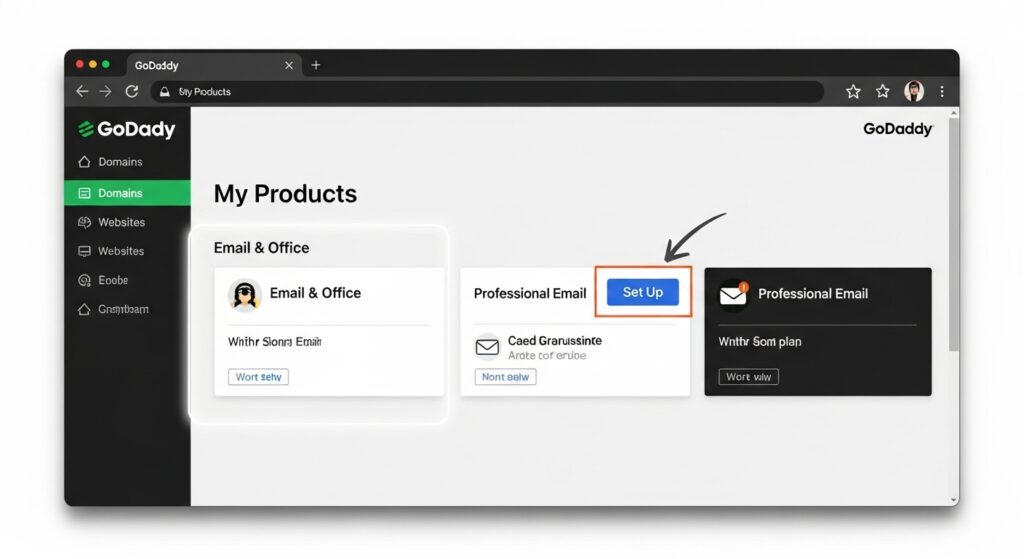
- In the top-right corner, click your name and select “My Products” from the dropdown.
- Scroll down the “My Products” page. You will pass your “Domains” and “Websites.” Stop when you see the “Email & Office” section.
- If this is your first time, you will see your new plan (e.g., “Professional Email”) with a “Set Up” button next to it. Click it.
Step 2: Choose Your Domain
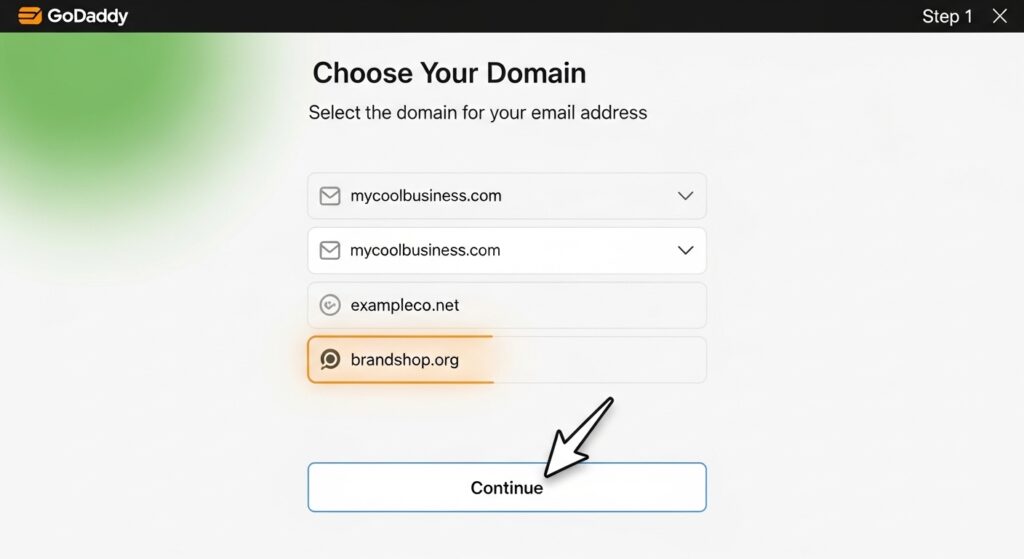
GoDaddy needs to know which of your domains this email will be for.
- A new screen will appear. It will show a list of your domains.
- Select the domain you want to use (e.g.,
mycoolbusiness.com). - Click “Continue.”
Step 3: Create Your First Mailbox (The “User”)
This is the fun part. You’re creating your actual email address.
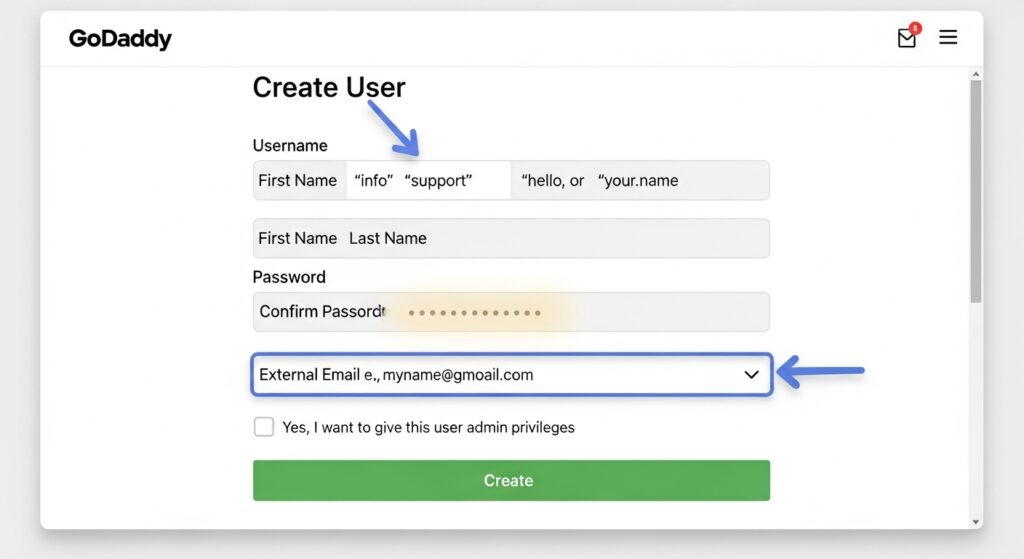
- A “Create User” form will appear.
- Username: This is the part before the
@. Examples:info(for a general inbox)support(for a support desk)your.name(for a person)hello(a friendly general inbox)
- First Name & Last Name: Enter the user’s name. This is what people will see as the “Display Name.”
- Create a Password: Make this a strong, unique password. Do not reuse your GoDaddy customer password. This is a separate login.
- External Email: Enter a different email address (like your personal Gmail). This is where password reset links and notifications will be sent. It’s very important.
- Admin Privileges: If this is your main account, check the box for “Yes, I want to give this user admin privileges.” This lets you manage other users in the future.
Step 4: Wait for It… (Provisioning)
After you click “Create,” GoDaddy’s system has to build your new mailbox on its servers. This is called “provisioning.”
- How long does it take? It can be as fast as 5 minutes or, if the system is busy, as long as an hour.
- What to do? Go get a cup of coffee. You can’t rush it. Hitting refresh won’t help.
- You will see a “Creating your mailbox” status. Once it’s done, your dashboard will show the new user as “Active.”
Step 5: Log In for the First Time!
Once your account is active, it’s time to log in. This is where most people get lost, but don’t worry.
- If you have “Professional Email”: Go to
email.godaddy.com. - If you have “Microsoft 365”: Go to
login.microsoftonline.com.
Your username is your new, full email address (you@yourdomain.com), and the password is the one you just created. For a complete, in-depth guide on just this step, see our GoDaddy Email Login Guide.
What’s Next? How to Connect Your New Email to Your Devices
You’re not going to live in the webmail portal. You want your email on your phone and your desktop. How you do this depends entirely on which plan you bought.
The Easy Way: Connecting Microsoft 365 (Exchange)
This is why you pay the premium. M365 uses “autodiscover.”
- On your iPhone, go to Settings > Mail > Accounts > Add Account.
- On your desktop Outlook, go to File > Add Account.
- Choose “Microsoft Exchange” or “Office 365” from the list.
- Type in your new email address (
you@yourdomain.com). - Type in your password.
- You’re done. It will automatically pull in your mail, calendar, and contacts. It’s magic.
The Manual Way: Connecting Professional Email (IMAP)
This plan requires you to manually enter the server settings.
- On your iPhone/Android or desktop mail app (Thunderbird, Outlook, etc.), choose “Add Account” > “Other.”
- It will ask you for server settings. You must choose “IMAP” (do not use POP3, it’s an outdated-syn-c protocol).
- You will need to enter the server names, ports, and SSL settings.
Finding these settings can be a pain. We have a complete cheat sheet with all the server names (imap.secureserver.net, etc.) and port numbers in our main GoDaddy Email Hub Guide.
Bonus: How to Choose the Right Professional Email Address
Don’t just make something up. Your email format says something about your company. You want it to be professional, clear, and scalable.
- For Individuals/Freelancers: A first/last name combo is best.
jane.doe@domain.com(Good)jdoe@domain.com(Good)jane@domain.com(Clean, if you’re the owner)
- For General Inboxes: Use role-based names.
info@domain.com(For general questions)support@domain.com(For customer help)sales@domain.com(For new business)hello@domain.com(A friendly, modern alternative toinfo@)
- Avoid These:
admin@(Looks technical and impersonal)me@(Looks a bit amateur)sales.dept.123@(Too long and confusing)
| The Good | The Bad (And Why) |
j.smith@domain.com | jsmith1987@domain.com (Looks like a free email) |
hello@domain.com | main.office@domain.com (Clunky) |
support@domain.com | thebestbiz@domain.com (Unprofessional) |
Pro Tips: How to Make Your New Email Actually Professional
Just having the email isn’t enough. You need to use it like a pro.
Tip 1: Create a Professional Email Signature
This is non-negotiable. Your signature is your digital business card. It should be on every email you send.
- What to include:
- Your Name
- Your Title (e.g., “Founder,” “Lead Photographer”)
- Your Business Name
- Your Website (as a clickable link)
- Your Phone Number (optional)
- What to leave out:
- Inspirational quotes
- Huge images or logos (they get blocked or marked as spam)
- 10 different social media icons
Tip 2: Use Aliases to Look Bigger Than You Are
Let’s say you’re a one-person company. You can use “aliases” to make your business look like it has multiple departments. An alias is a “nickname” for your main inbox.
You can set up info@, sales@, and support@ all to be delivered to your single you@yourdomain.com inbox. You can even configure your mail client to “Send As” these aliases. This is a feature in both the Professional Email and M365 dashboards.
Tip 3: Set Up a “Catch-All” (With Extreme Caution)
A “catch-all” account will “catch” any email sent to any address at your domain. If someone mistypes your email and sends it to jon@yourdomain.com instead of john@yourdomain.com, you’ll still get it.
- The Pro: You never miss a typo’d email.
- The Con: You will be drowned in spam. Spammers “guess” email addresses (
admin@,test@,webmaster@) at every domain. A catch-all accepts all of it. - My Advice: Don’t use one. Just create aliases for common misspellings.
Troubleshooting: “Why Is My GoDaddy Email Not Working?”
You did everything right, but you’re not getting emails. This is 99% a DNS problem.
The “MX Record” Problem (The Mailman’s Address)
DNS (Domain Name System) is your domain’s address book. The “MX” (Mail eXchanger) record is the specific entry that tells the internet, “Send all mail for mycoolbusiness.com to this specific server.”
When you set up your email through GoDaddy, it should set this up for you. But sometimes, it doesn’t.
- Common Cause: You have your domain at GoDaddy, but your website is hosted somewhere else (like Wix, Squarespace, or Bluehost). Changing your hosting often breaks your MX records.
- The Fix:
- Log in to your GoDaddy DNS settings for your domain.
- Find the “MX” records.
- You need to make sure they are pointing to the GoDaddy email servers, not your website host.
- GoDaddy has a tool for this. In your “Email & Office” dashboard, there is often a “Troubleshooting” or “DNS Settings” tool that will check and fix your MX records for you.
The “SPF/DKIM” Problem (The Anti-Spam Stamp)
This is more advanced, but it’s critical for.
- SPF (Sender Policy Framework): A DNS record that says, “Only GoDaddy’s servers are allowed to send email for my domain.” This stops spammers from spoofing your address.
- DKIM (DomainKeys Identified Mail): A digital signature that proves your email hasn’t been tampered with.
If you find your emails are going to your customers’ spam folders, it’s almost always because your SPF or DKIM records are missing or broken. GoDaddy’s M365 plan handles this for you. For the “Professional Email” plan, you may need to add these records (as “TXT” records) in your DNS settings.
For a full, deep-dive into these issues, see our comprehensive GoDaddy Email Hub guide.
Are There Alternatives to GoDaddy Email?
Yes. GoDaddy is a convenient “all-in-one” shop, but you can buy your email from other providers. The two biggest are:
- Google Workspace (formerly G Suite): This gives you Gmail for your custom domain (
you@yourdomain.com). If you love the Gmail interface, this is your best bet. - Microsoft 365 (Direct): You can buy your M365 plan directly from Microsoft. This is often better for larger teams or those with complex IT needs.
In both cases, you would buy the email from them, and then you would just have to go into your GoDaddy DNS settings and point your “MX Records” to Google’s or Microsoft’s servers. It’s more technical, but gives you more flexibility. You can see how they stack up on a comparison of webmail providers.
A Quick Note: Are You Looking for the Workforce Login?
This is a common point of confusion. If you are an employee of a business that uses GoDaddy for scheduling or payroll, you might be looking for the GoDaddy Workforce Login. This is a totally separate product for time tracking and HR.
Final Verdict
For 90% of small businesses, GoDaddy email is a great choice.
- If you value simplicity and all-in-one billing, it’s the easiest way to get a professional email address up and running in under an hour.
- If you’re a serious business, the GoDaddy Microsoft 365 plan is not a “lite” version—it’s the real, powerful deal, and it’s worth the price.
The few dollars a month it costs to upgrade from @gmail.com to you@yourdomain.com will pay for itself in credibility the very first time you send a client an invoice.